
The Remote Desktop Gateway service allows you to connect to an Engineering Windows computer from anywhere that you have Internet access and an appropriate Remote Desktop client.
This will NOT connect you to the DECS Remote Desktop Services (RDS) Servers. Please visit the Connect to the Engineering Virtual Desktop page to use the DECS RDS Servers.
You will need:
- The .rdp file that is attached to this tutorial (located at the bottom of this page). Be sure to right click and Save link as.
- The fully qualified hostname of your computer, which can be found one of two ways:
- The active directory name of your computer. You can get this by opening a CMD window and typing hostname. You must then add .ad.egr.msu.edu to the hostname.
- Example: chems000.ad.egr.msu.edu
- The registered hostname of the computer you wish to connect to. If you have registered the machine yourself, you should be able to login to the website http://dhcp.egr.msu.edu to find the hostname. You must then add .dhcp.egr.msu.edu to the hostname.
- Example: decs001.dhcp.egr.msu.edu
- The active directory name of your computer. You can get this by opening a CMD window and typing hostname. You must then add .ad.egr.msu.edu to the hostname.
- The computer you are connecting must accept a remote desktop connection and you must have an account in the Remote Desktop Users group you can connect with.
Choose the appropriate operating system link below for instructions.
Please contact the DECS Support Office if you have any questions or require assistance.
- Right click and select Save link as for the .rdp file located below to launch the remote desktop client. Double click the file to open it.
- Enter the name of the computer you are connecting to followed by either .dhcp.egr.msu.edu or .ad.egr.msu.edu in the box provided and click Connect.
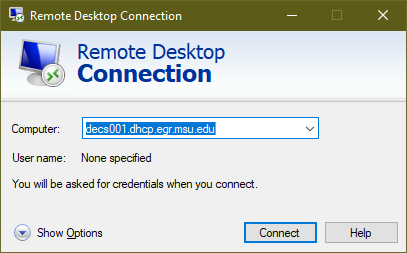
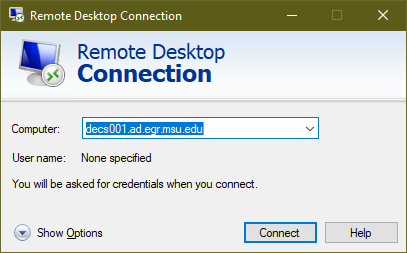
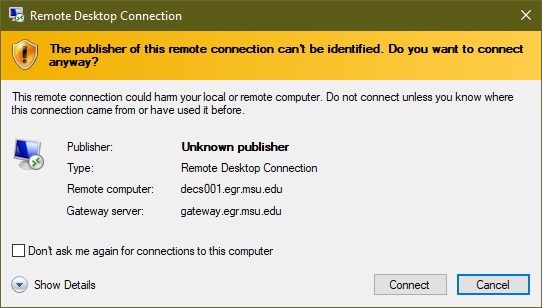
- A prompt similar to the image below will display; click Connect to continue. If you will be connecting to this computer again and don't want to see the message, check the box for "Don't ask me again for connections to this computer".
- Enter your entire engineering email address (username@egr.msu.edu) and your engineering password.
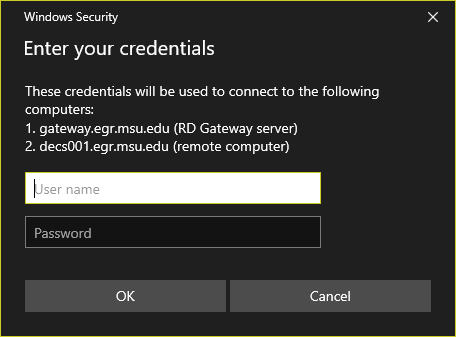
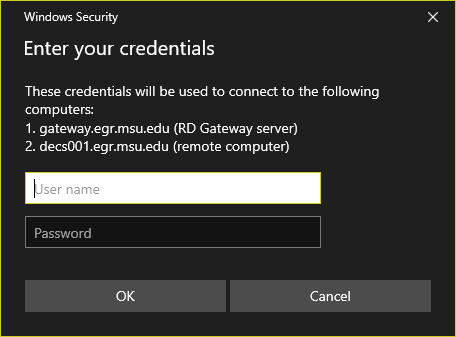
- You might see a second credential prompt similar to the following if the computer you are connecting to uses different credentials. Once you supply valid credentials, you should be able to connect to the remote computer.
- Search the app store and install "Microsoft Remote Desktop". You will need version 10 with a circle icon. Version 8 with the square icon is old and will not work with the Gateway.
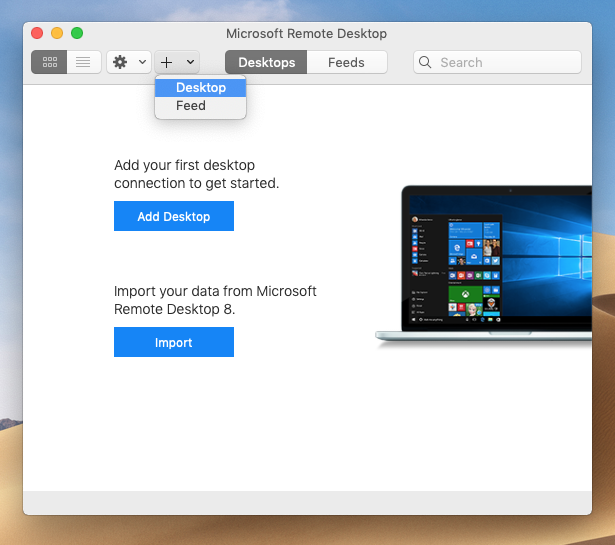
- Open the Microsoft Remote Desktop client, then click "+" icon at the top and select "Desktop".
- In the "PC Name" field, enter ComputerName.dhcp.egr.msu.edu
In the "Friendly name" field, enter in something you will associate with the remote desktop service. For example: ComputerName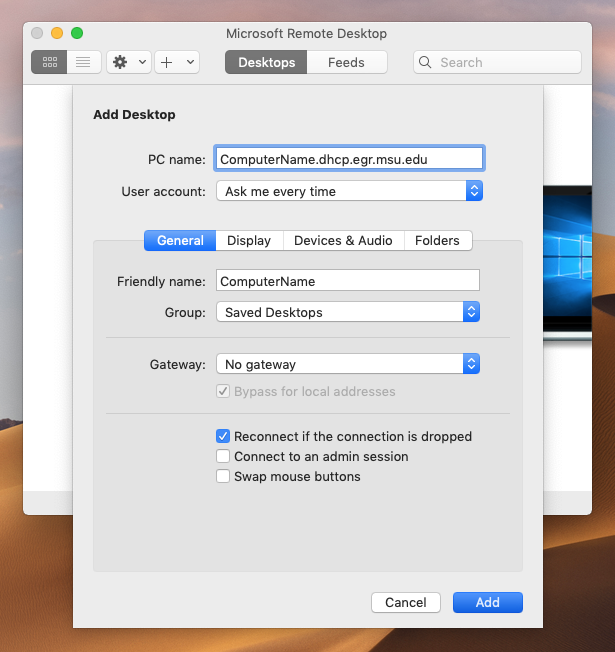
- Click on the "Gateway" drop-down and select "Add gateway"
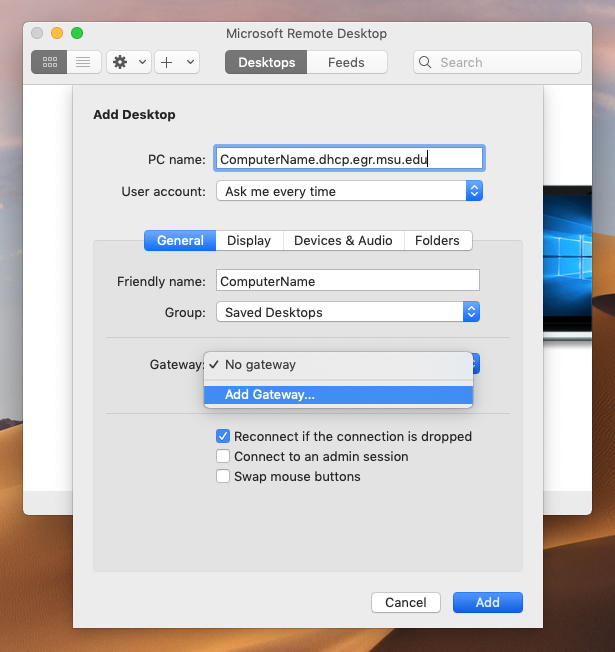
- In the "Gateway name" field, enter in gateway.egr.msu.edu, in the "Friendly name" field type in EGR Gateway. After both those fields are filled out, click "Add".
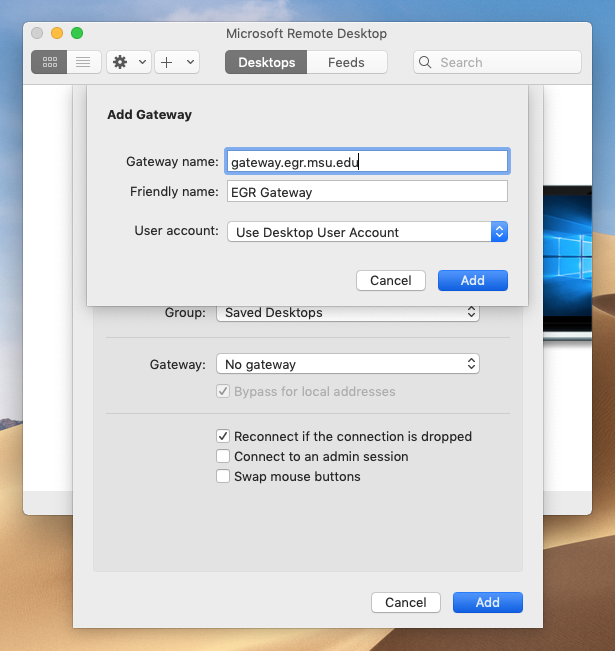
- Once you are finished with the gateway, click "Add" on the Add Desktop page. It should appear in the client now. Click on the new saved desktop you created, it should be named with whatever "Friendly name" you specified previously. Enter in your Engineering username in either of the two following formats: YourUsername@egr.msu.edu or egr\YourUsername then fill in the password field with your Engineering password. After clicking "Continue" you will be connected to your lab machine remotely.
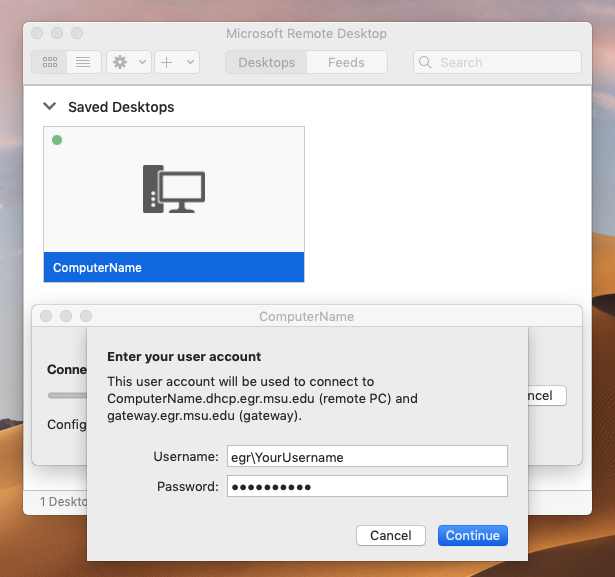
If you do not want to enter your log-in information each time, open the settings for the remote connection and under the "User account" drop-down select "Add User Account"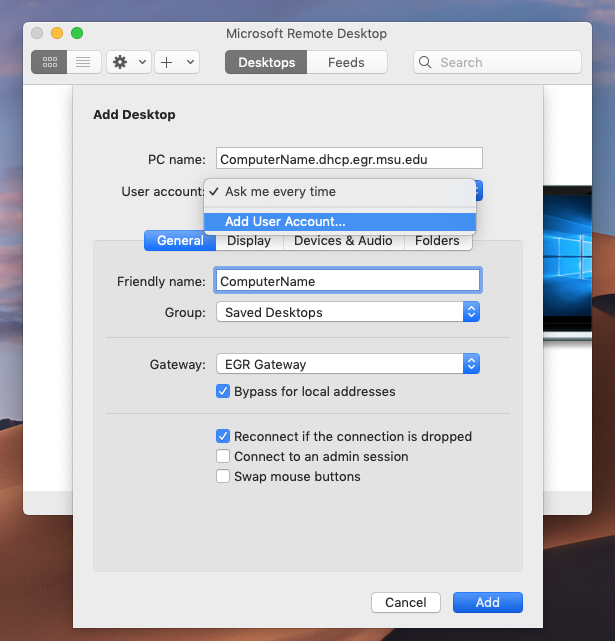
In the page that opens simply fill it with your log-in information, an example is shown below. Click "Add" once you are done and save the settings.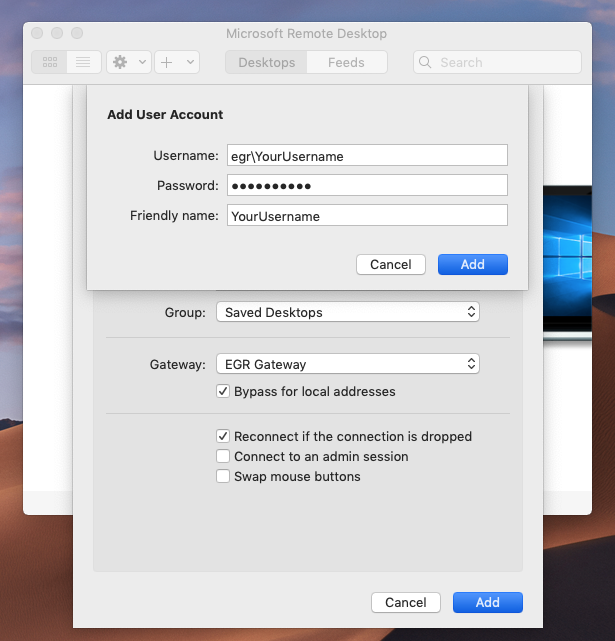
.rdp File
Right click the file below and select Save link as to download it.
| Attachment | Size |
|---|---|
| gateway.rdp | 2.38 KB |