
Using X2GO on the EGR Network
X2Go is an implementation of NX remote desktop protocol, you can use it to remotely access the graphical desktop of our Linux compute servers. X2Go can be installed on Linux, Windows, or MacOS.
If you are a Windows user you can come to the DECS Support office at 1325 Engineering Building and have a pre-configured version of X2go installed. If you'd like to perform the install and configuration yourself, please see below.
*NOTE: These Steps only work while on the EGR Network --> To use a Unix based machine Remotely Scroll to the Remote Access Section of this Article*
- Download X2go
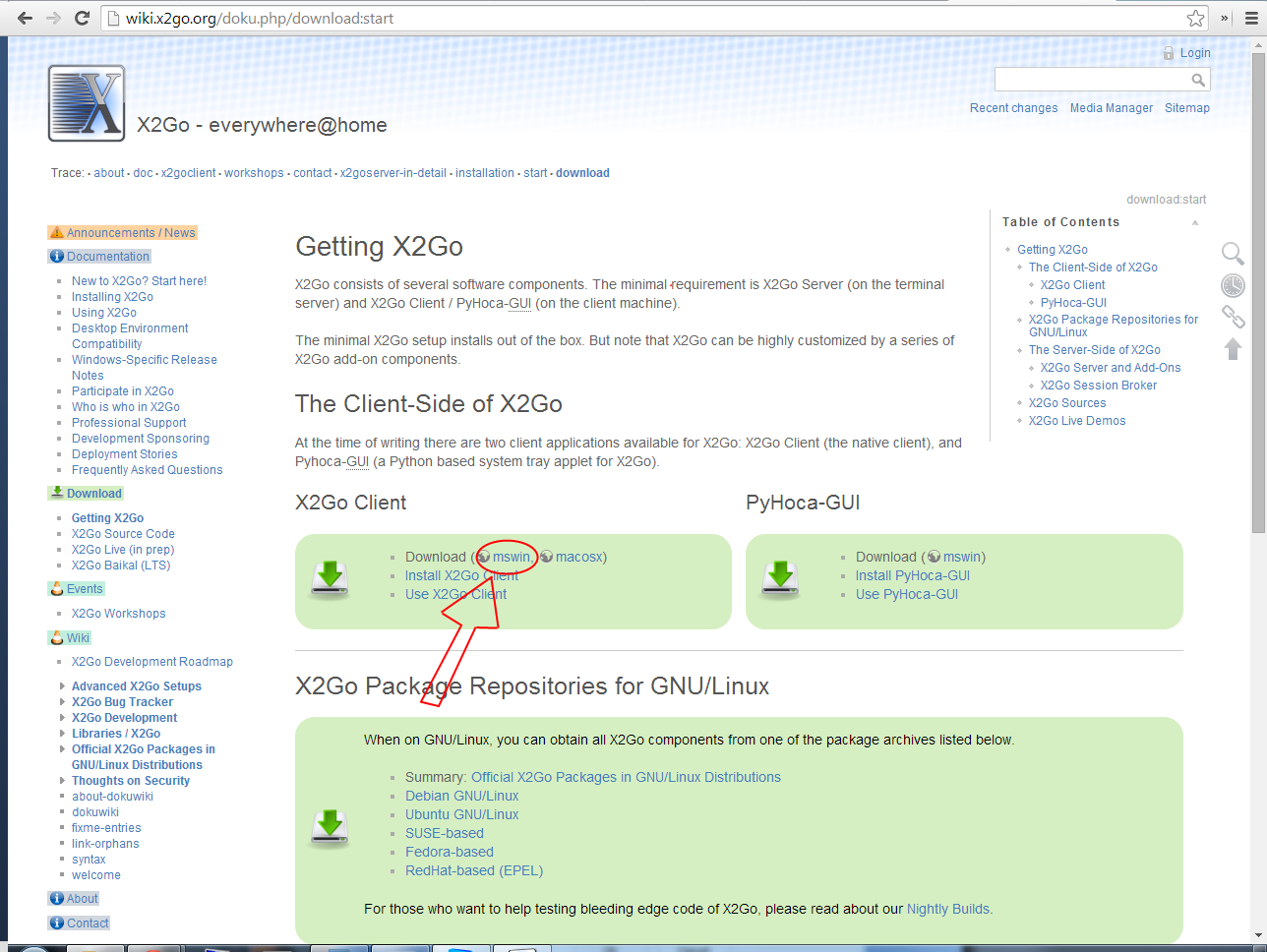
- Install the program using the default settings
- Open the program
- The configuration page should show as in the picture
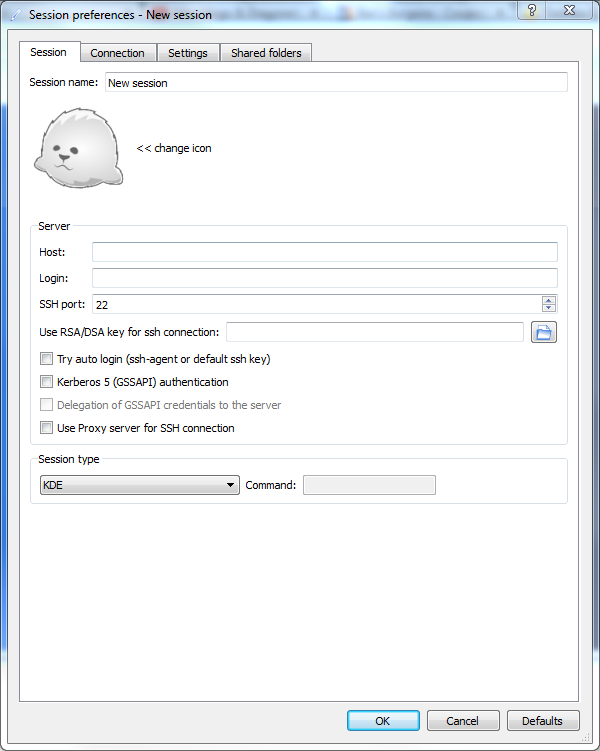
- Input the name of the server you want to use in the Host field (names follow the format compute01.egr.msu.edu, compute02.egr.msu.edu, etc all the way up to compute10.egr.msu.edu).
- Input your engineering username into the Login field
- Change the Session type field to XFCE
- Optionally change the Session name to the name of the server
- Press the OK button to save the session
- Double click the desired session shown in the sidebar
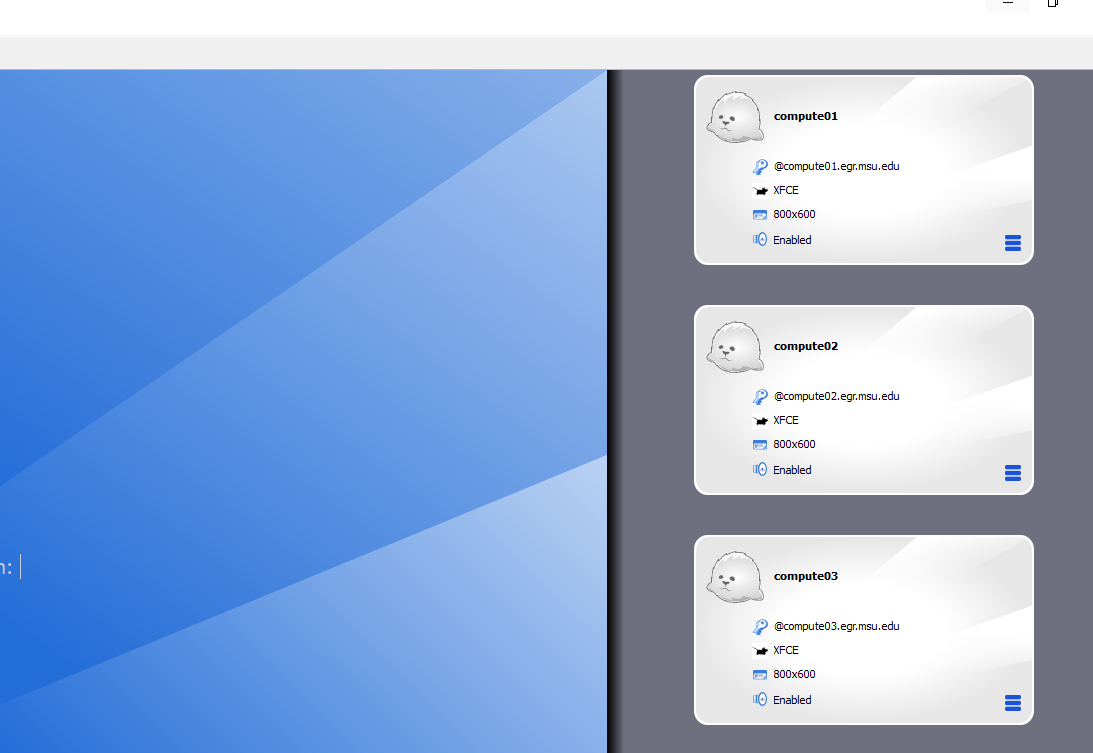
- Enter your EGR username and password when prompted
- Select Use default config when prompted to get a default menu
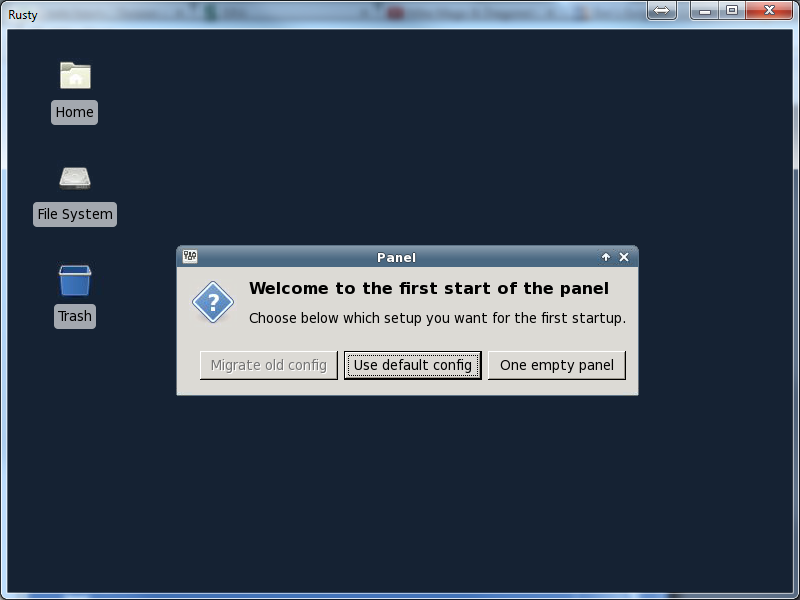
- You can run applications from the Applications Menu or open a terminal window by clicking the black icon on the bottom dock
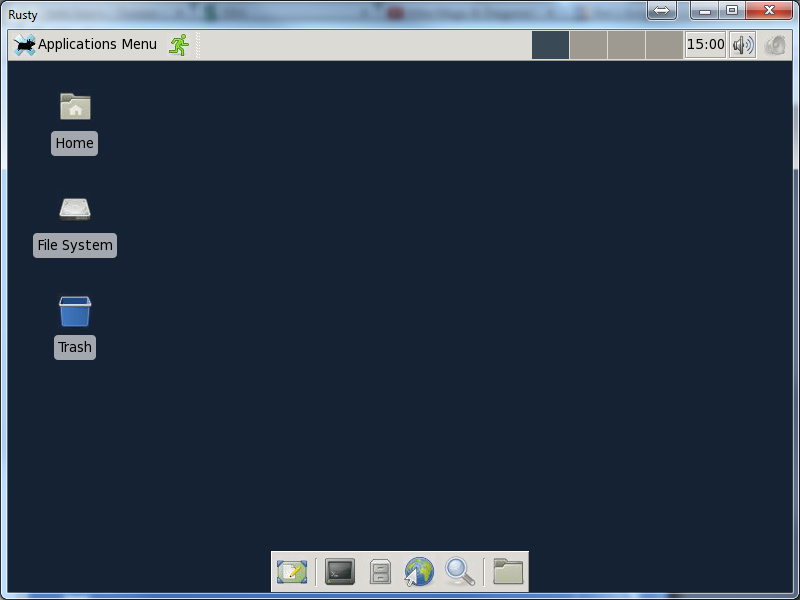
X2GO Settings for Remote Access to Unix based Machines:
Similar to the Steps above accessing machines from outside of the engineering network is a very quick and easy thing to do by setting up an SSH Proxy within the X2GO 'Session Preferences' Window.
*NOTE: If you are attempting to connect to your own Unix machine refer to the X2GO Server installation guide here before attempting the below steps*
- Open the X2GO Client and bring up a "New Configuration" Window.
- Upon opening the window you should see the "Host" & "User Name" fields respectively.
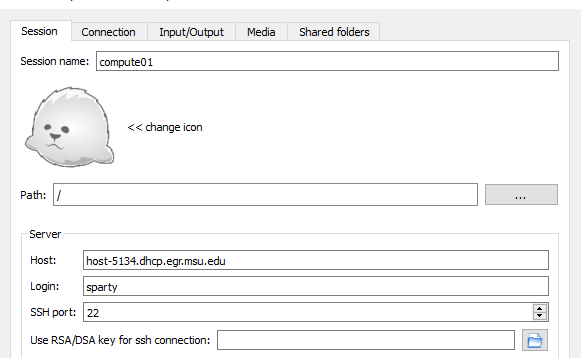
- For a Host refer either to the "Compute(##).egr.msu.edu" Servers shown in the above examples or enter in your own machine's DHCP Hostname (Ex. Host-3156.dhcp.egr.msu.edu)
- For the "Login" Field either enter the machine's local account name or if using the compute server your EGR NetID without the ('EGR\') proceeding it
- Next, click the Checkbox "Use Proxy Server for SSH Connection" in the Configuration Window, this should pop out more fields for you to fill in
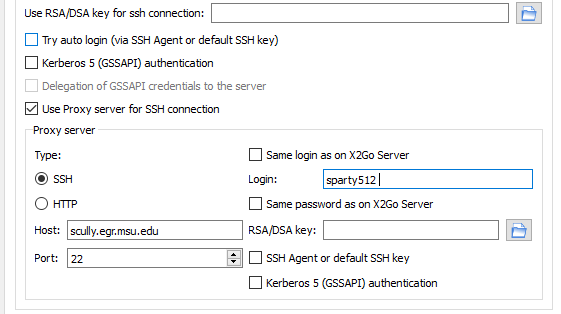
- In the "Host:" Box input ("scully.egr.msu.edu") The port number should remain at Port: 22 & the Proxy type as SSH
- The username to use for this proxy is your EGR NetID without the ('EGR\') portion
Now turn your focus towards the bottom of the window and select your session type for the compute servers this is XFCE but on your own machine you must install your own Desktop environment specifically for X2GO resources for these can be found online most are included here in the Official Documentation for X2GO:
Desktop Environment Usage*NOTE: If your machine is a variation of the Ubuntu OS you will not be able to Access the GNOME3 Desktop Environment it uses, X2GODesktopsharing may be a solution but it is unstable, Using a different environment is highly recommended*
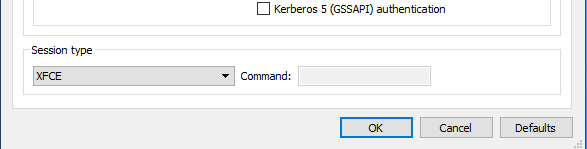
- From here you should be good to select "OK" and attempt connection you first will be prompted for your Local Password (If you are using a personal machine) or EGR if you are using the compute servers
- Then you will be prompted for the "Proxy" password this is your EGR Password in both cases
- You should be connected to the machine after a few moments