Server information you will need:
- Username: Your engineering NetID
- Password: Your engineering password
- Incoming mail server: mail.egr.msu.edu
- Incoming security: SSL
- Incoming port: 993
- Outgoing mail server: mail.egr.msu.edu
- Outgoing security: SSL
- Outgoing port: 587
Note: The EGR email does not work with the Outlook app on mobile.
Below is a walk-through using screen shots from a Google Pixel 6 with Android 12. Your actual screen images may vary.
- Open the Gmail application.
- If this is the first mail account being set up, a setup wizard should appear.
If this is not the first email account setup on the phone, use the Menu button, select Settings and add a new account. Select Other for type of account (pictured below).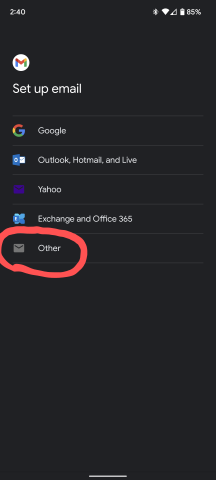
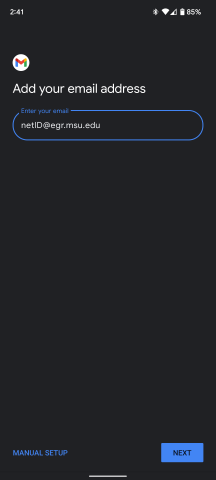
- The new account dialog should be brought up. Enter your EGR email and select Next.
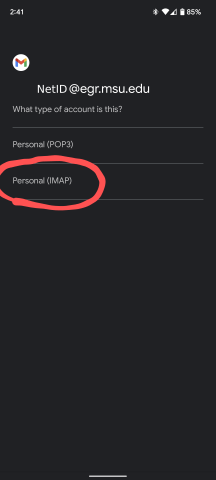
- Select Personal (IMAP)
- The following steps configure incoming mail.
The username field requires your email address without "@egr.msu.edu"
Input the correct password for your engineering account.
Under server or Incoming Mail Server, input mail.egr.msu.edu.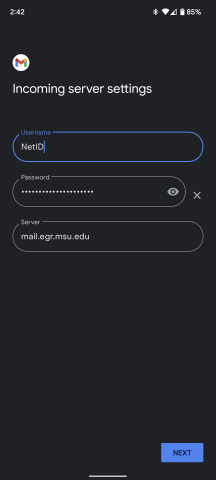
- The following steps configure outgoing mail.
The username field requires your email address without "@egr.msu.edu"
Input the correct password for your engineering account.
Under server or outgoing Mail Server input mail.egr.msu.edu.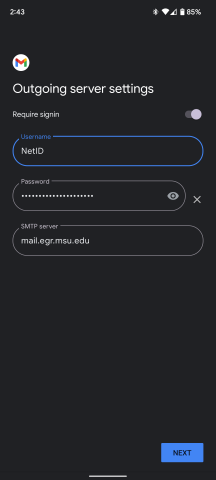
- Choose how often you would like your phone to sync with the servers then click Next.
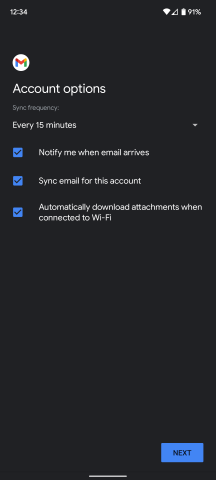
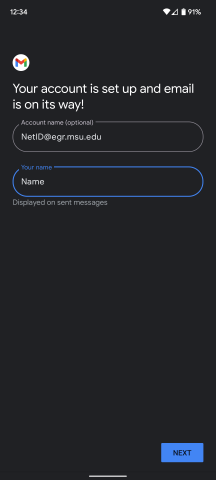
- Enter your preferred name and click Next to complete the setup.