
Email Configuration for iOS 7
Please note that the EGR email will not work with the Outlook app on mobile devices.
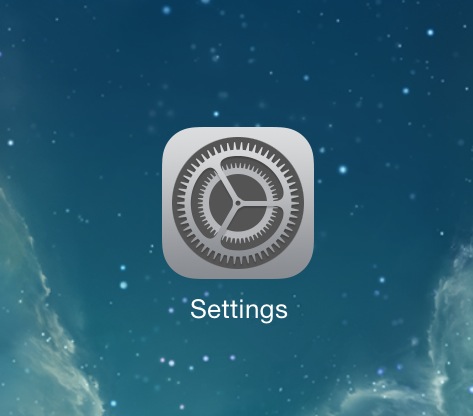
- Go to Settings.
- Scroll down to Passwords & Accounts >
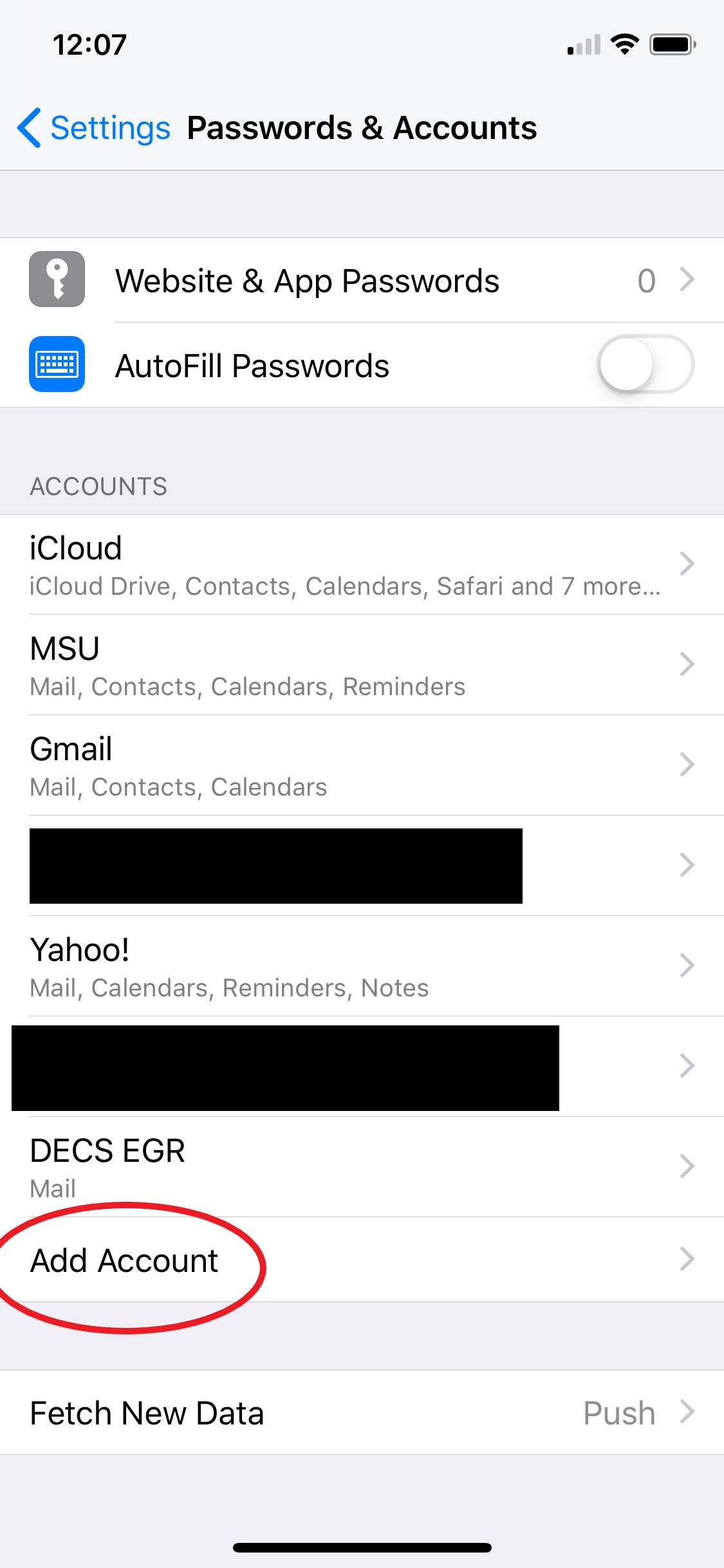
then touch Add Account. 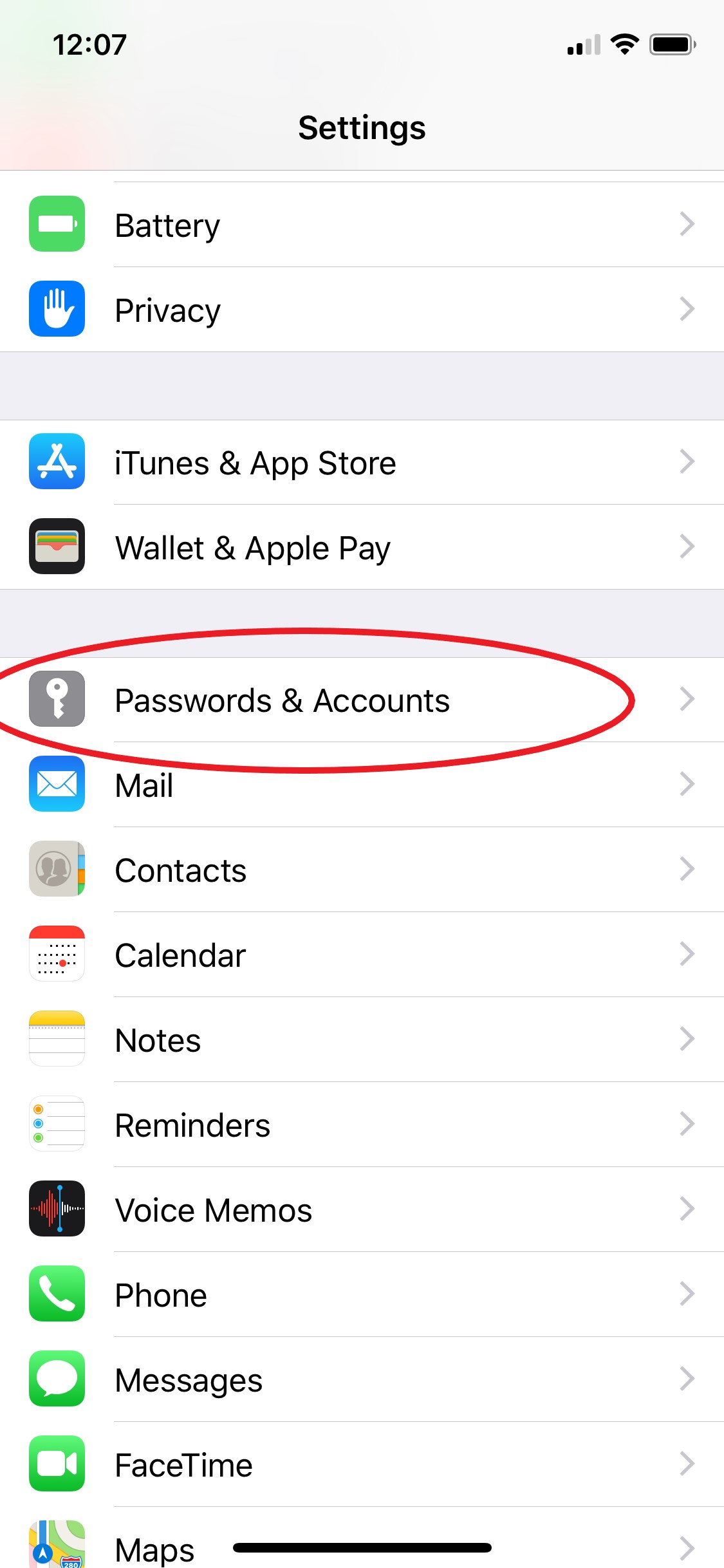
- Touch Add Account
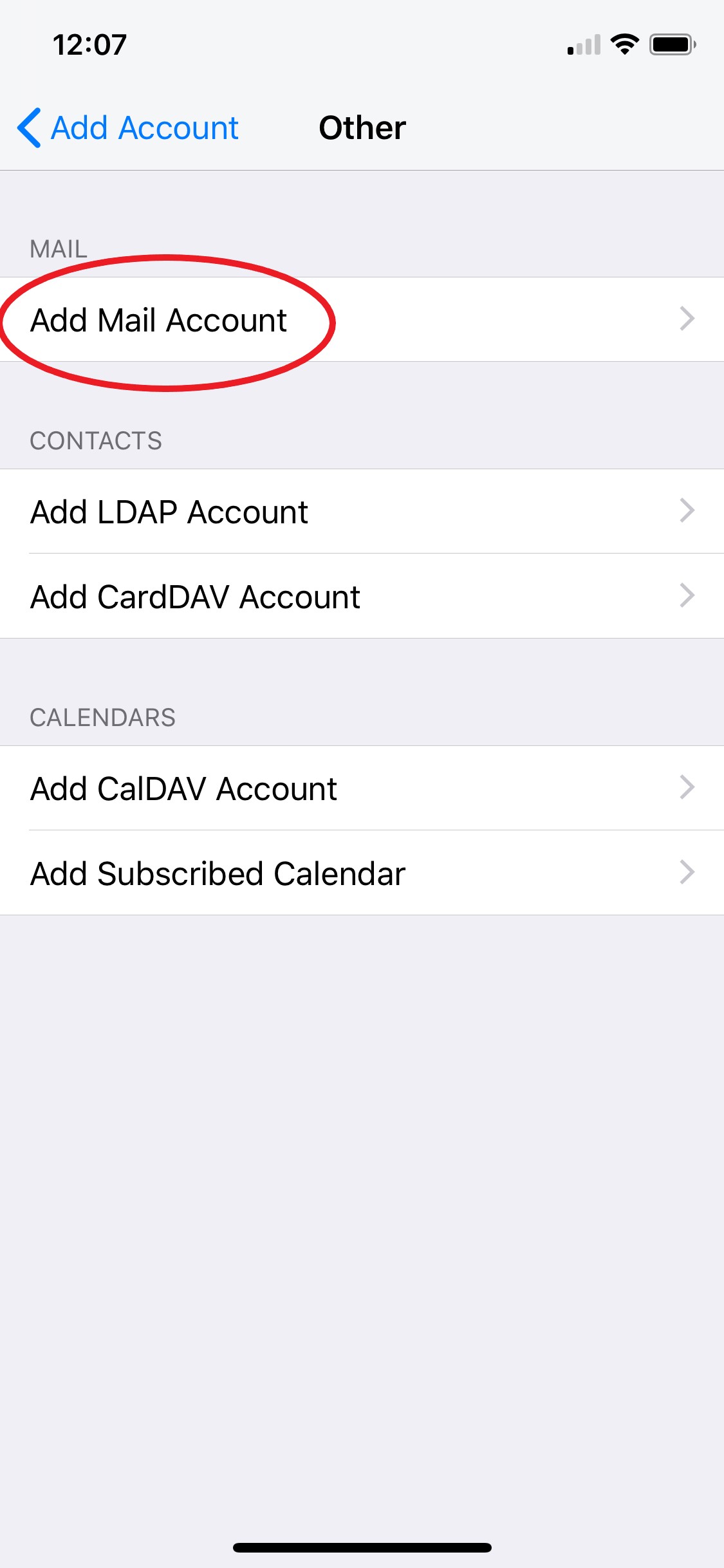
- Touch Other
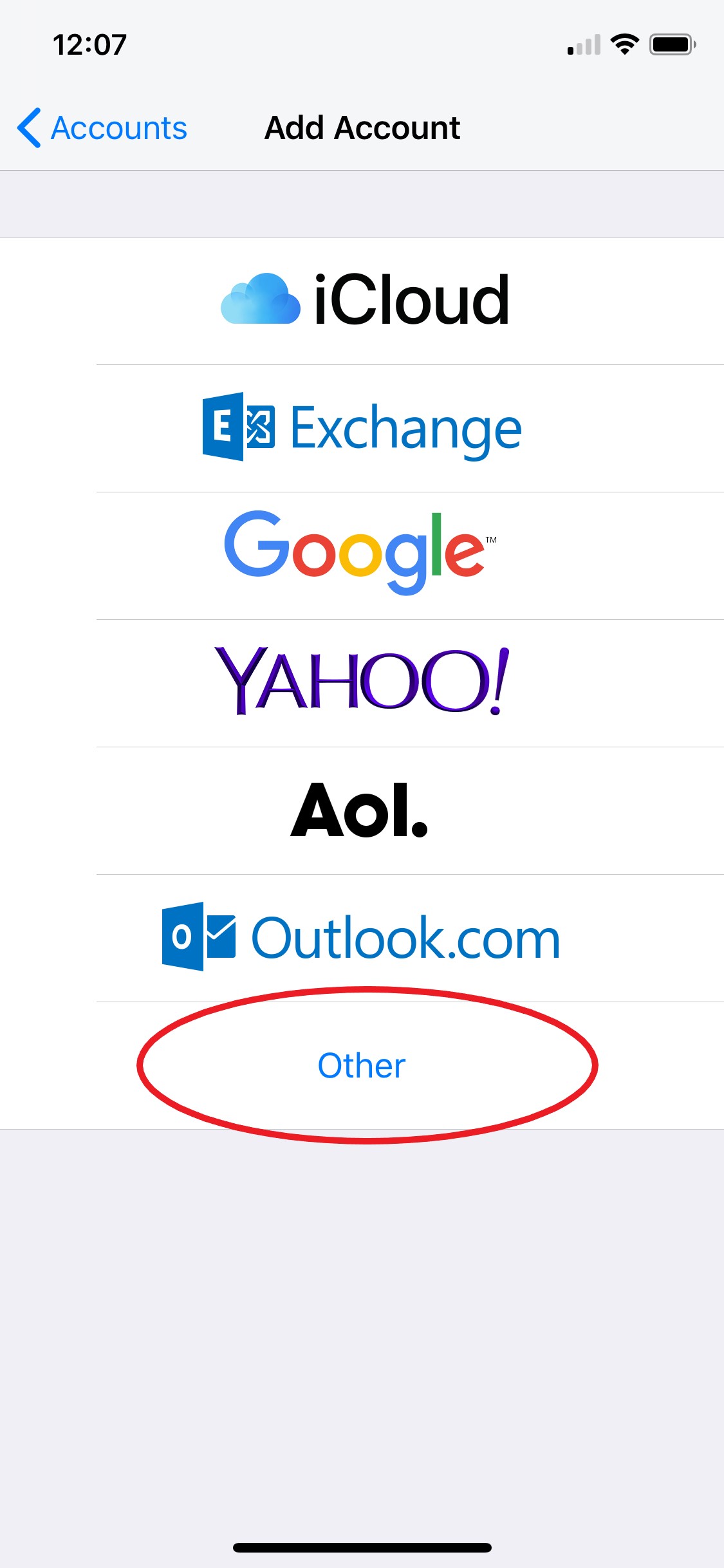
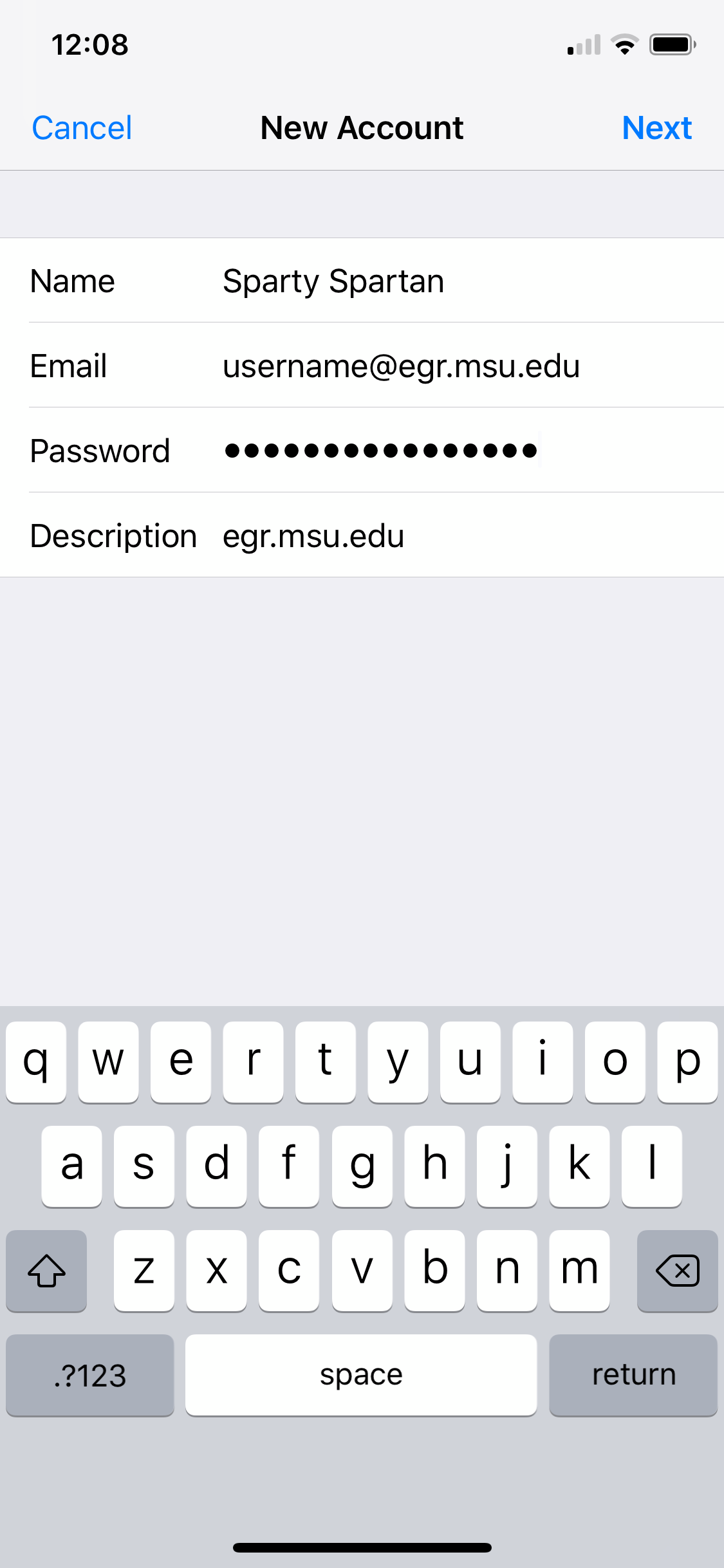
- Touch Add Mail Account, type your name, your engineering email address and your engineering password. If entered correctly, egr.msu.edu will automatically populate under the description.
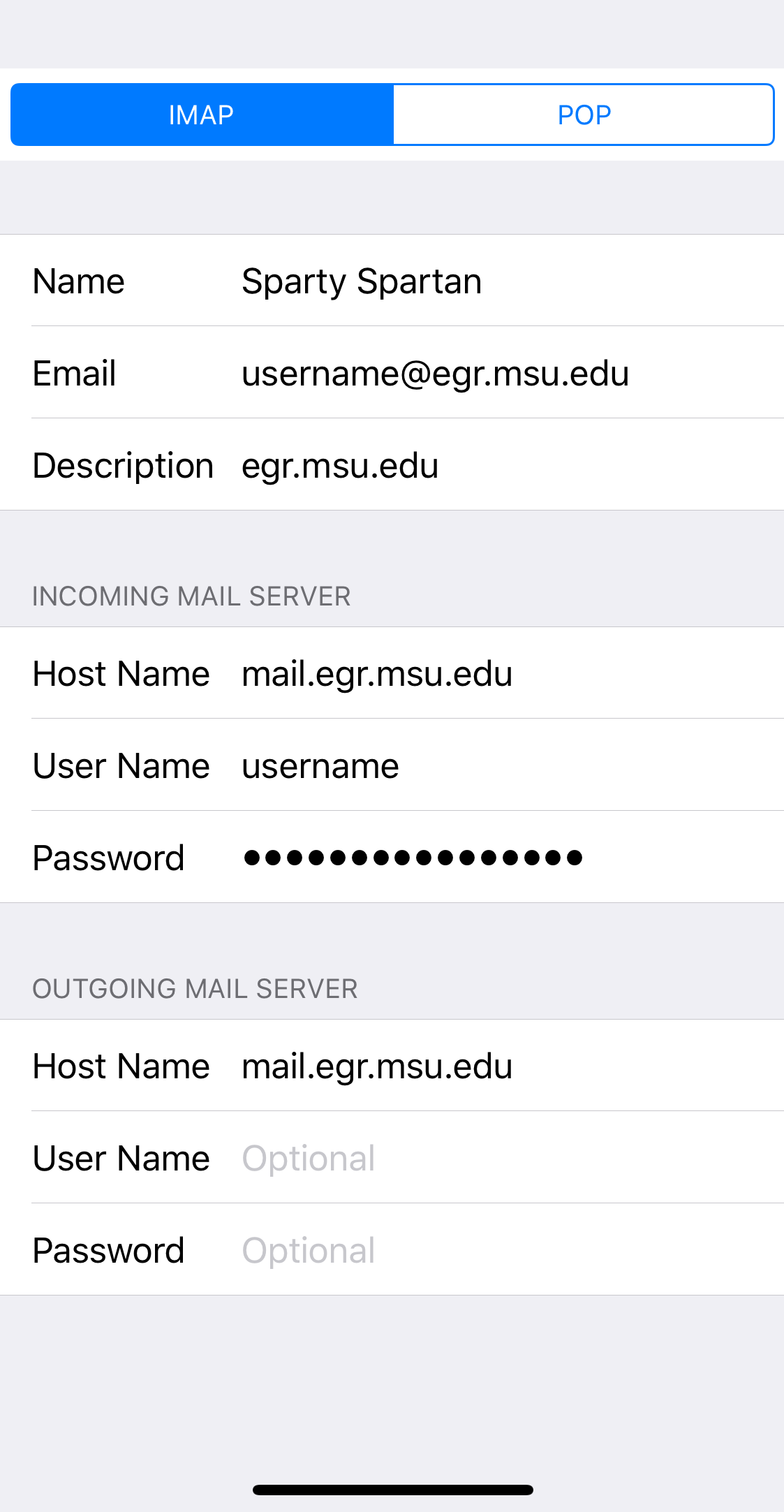
- Make sure IMAP is selected. Enter mail.egr.msu.edu for "Host Name" under "Incoming Server." Enter your username and your password. Enter mail.egr.msu.edu in "Host Name" under "Outgoing Server." Type in your username and password in the appropriate fields under Outgoing Mail Server.
- Touch Done. Your email should now appear in the device's Mail App. If not, please see DECS Support for assistance.
How-To Keywords