Creating and Simulating an Analog Layout in Tina-TI
Application Note
Jessica Shelby
ECE 480
March 12, 2014
Abstract
The purpose of this application note is to walk a beginner through the Tina-TI software. After reading through, the user will be able to draw out a circuit by selecting the right components, wiring them together and assigning the right values. The application note uses a Texas Instrument Operational Amplifier, OPA691, and builds a simple circuit around the op-amp. A DC, AC and Transient Analysis will be performed to measure the performance of the op-amp.
Keywords
AC Analysis, Circuit Layout, Circuit Simulation, DC Analysis, Texas Instruments, Tina-TI, Transient Analysis
Table of Contents
Overview.........................................................................................................................................3
Setting up TINA-TI On Your Personal Device..................................................................................3
I. Download.........................................................................................................................3
II. Open the Program..........................................................................................................3
Laying Out a Circuit in TINA-TI........................................................................................................5
I. Select and Place a Component........................................................................................5
II. Connect Components to Each Other..............................................................................6
III. Connect Circuit to Ground.............................................................................................7
IV. Assign Values to Components.......................................................................................7
V. Assign Names to Components......................................................................................10
VI. Probe the Output.........................................................................................................10
Running Analyses on the Schematic.............................................................................................10
I. Run a Transient Response..............................................................................................10
II. Run a DC Analysis..........................................................................................................12
III. Run an AC Analysis.......................................................................................................13
Conclusion....................................................................................................................................14
References....................................................................................................................................15
Overview
Texas Instruments (TI) and DesignSoft, Inc. came together to introduce a circuit simulation tool used widely within and outside of TI known as Tina-TI. Its main use is for analog circuit simulations. The easy GUI allows for a fast-learning capability so not much time is spent struggling with the software but more on applying the tools included.
A few of its main features include AC, DC and Transient analyses of an analog circuit. The AC analysis is useful when looking at the frequency response of the circuit. Many times specific values of components are changed to accommodate for a better frequency response. The DC and Transient analyses can also be useful to see how well the circuit's output responds to its input whether referring to time or voltage.
The specific op-amp for this example is Texas Instruments' OPA691 Wideband, Current Feedback Op-amp. The datasheet can be found on their website at http://www.ti.com/lit/ds/symlink/opa691.pdf. The circuit being drawn around the op-amp is an application circuit that TI developed to test the behavior of the circuit. The reference model can be found on TI's website again at http://www.ti.com/product/opa691 under Models.
Setting Up TINA-TI On Your Personal Device
I. Download
Go to the Texas Instrument’s website http://www.ti.com/tool/tina-ti and download the free, correct version for you. You will then be instructed to read through the Tina-TI License Agreement and check the I ACKNOWLEDGE AND CERTIFY statement. Once you click submit a window will appear asking what to do with the sloc241c.zip folder. Choose to save the file and then open Tina90-Tien.exe. You will then be instructed on how to finish the setup through your setup guide.
II. Open the Program

Once you open the program you shall see the following screen.
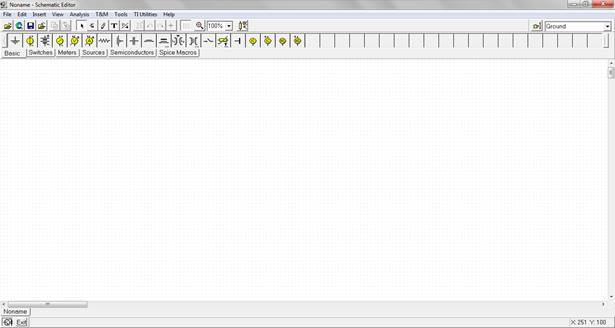
This is the default screen where you will build the circuits to be tested. Before starting the circuit layout, lets save the schematic. Go to File > Save As and then save the layout as 'Example1' with the Schematics extension as shown below.
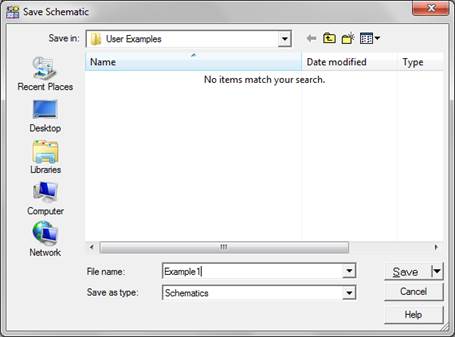
Then press Save and it will save the project under the 'User Examples' folder.
Laying Out a Circuit in TINA-TI
I. Select and Place a Component
First, locate the lower toolbar with the options Basic, Switches, Meters, Sources, Semiconductors and Spice Macros. This toolbar contains all the different components in the database. Go through each tab and see what different components are in which category. Choose the tab labeled Spice Macros. Once in the tab select Operational Amplifiers and the following box should appear.
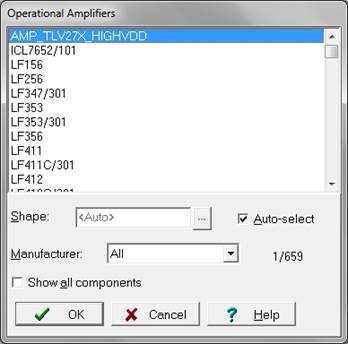
Scroll down until you find OPA691 then click OK. The box will close and you should now have the op-amp in your possession. To place it on the grid simply left click on the desired spot. Now that you know how to select and place a component, select and place anywhere on the grid three resistors, two batteries and a voltage generator all found under the Basic tab. To move components around simply left click on the component and drag it with the mouse. Now place the components so the schematic looks like the one below.
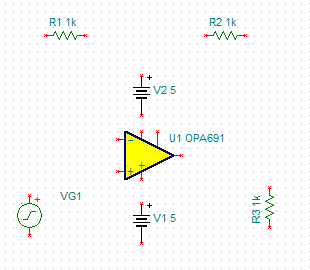
Notice R3 is turned to the side. To do this just right click on the component and choose Rotate Left.
II. Connect Components to Each Other
Next you want to connect the components together to form the correct nodes on the circuit. Lets start with R1. Notice The little red x's on each component. Click on the red x to the right of R1 and drag it straight across until just below V2 then straight down, connecting R1 to V2. Repeat the procedure until your schematic looks like the one below.
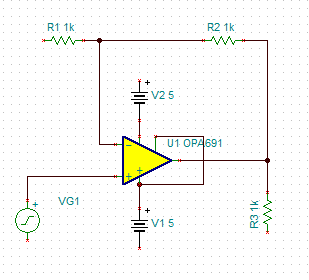
It is important to note not to directly connect one component to the other meaning both the red x's touch. There should always be a wire connecting one component to the next. Notice now most of the components have one side floating. They all need to be connected to ground.
III. Connect Circuit to Ground
There are different ways to connect the nodes to ground. You could connect all the floating sides of the components together then connect one of the lines to ground. You could also group certain nets together and have one ground, for example connect VG1, V1, and R3. The most common practice is to place each component separately to ground. This makes it easier when laying out a circuit to be manufactured because it will not look like, for example, VG1, V1, and R3 need to be connected together on the printed circuit board (although in reality all grounded components are connected). This allows for a less complicated layout. You can find the Ground component under the Basic tab. Go ahead and place five grounds onto your layout and connect the remaining floating nodes. Your circuit should now look like the one below.
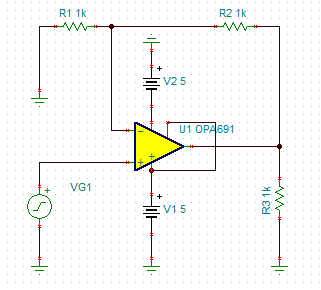
Again notice the rotated ground on V2.
IV. Assign Values to Components
Next you need to assign the correct values to the components. Right click on R1 and choose Properties... (This can also be achieved by double clicking on the component)
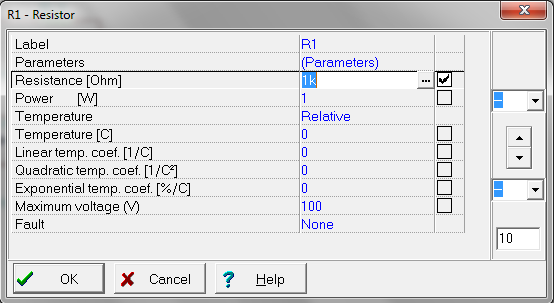
In the Resistance [Ohms] row change the value from 1k to 500 and click OK. The value has now successfully been changed. Search around in the Properties window to see what other characteristics you can change. Now change the rest of the components to the following...
R2=500
R3=1k
V1=5
V2=5
VG1 is an alternating signal. Double click on the component.
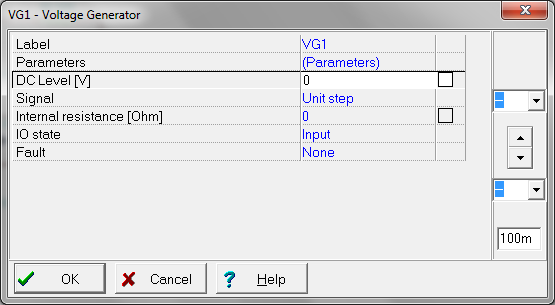
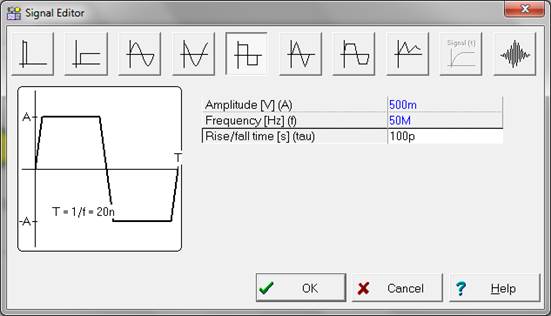
Now click in the Unit step box and click on the three dots that pop up to the right. This allows you to choose what kind of signal you want to input. This example will use a square wave for example. Choose the Square option from the tab at the top. Then assign the Amplitude to 500m, the Frequency to 50M and the Rise/Fall time to 100p.
Click OK then OK. All of the components now have the correct values.
V. Assign Names to Components
Assigning specific names to each component is very important especially once the schematics are being turned into printed circuit boards. The person using it needs to know which components are what for measuring and debugging. To assign specific names, right click on the component and go to Properties... Then click in the Label box. You can then assign the appropriate name. Assign VG1 to VIN. It is typical to assign R3 to RL so go ahead and assign that as well.
VI. Probe the Output
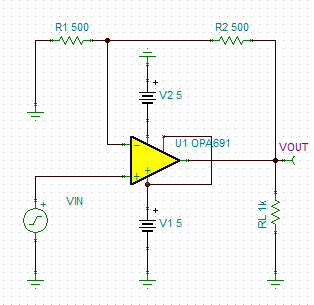
In order to measure the output of the circuit, you will need to assign a pin to the output node. Go to the Meters tab and select Voltage Pin. Connect this to the node shared between R2, RL, and the output of the op-amp. Rename it VOUT. This will now put a probe on that node and measure the voltage during the analysis tests. The final circuit should look like the following.
Running Analyses on the Schematic
I. Run a Transient Response
To run a transient response on the circuit, locate the toolbar at the very top where it says File, Edit, Insert, View, Analysis, T&M, Tools, TI Utilities and Help. Briefly run through these drop down tabs and explore the options. Then click on the Analysis tab and scroll down and click on Transient... Change the End Display to 40n.
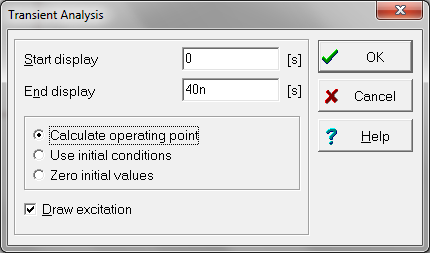
This will run the time from 0 to 40n sec so we can see about two periods of the signal. Click OK. The following graph should appear.
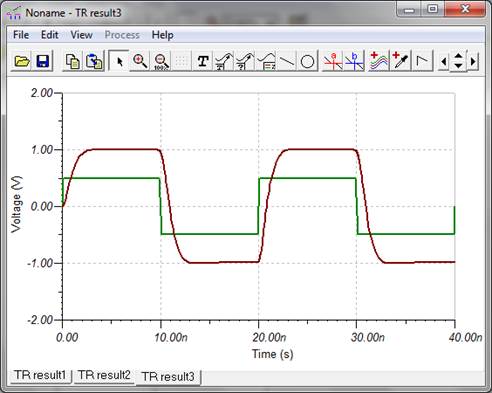
If you receive any errors or warnings make sure you go back and verify the connections. Also, make sure you have the VOUT voltage pin which is the red line. To see which line corresponds to which node, go to the tab with the sine wave and a box that will say Legend when the mouse is resting over it. Click this and place the legend where you would like on the graph. This distinguishes the two lines. Also, go to the top and click on View. Notice all the different views you can have, such as Separate Curves. Play around with the different views you can have. As you can see the circuit will output almost the same signal with a gain of two.
II. Run a DC Analysis
To run a DC analysis on your circuit, go back to the Analysis tab and scroll down and highlight DC Analysis then choose DC Transfer Characteristic.
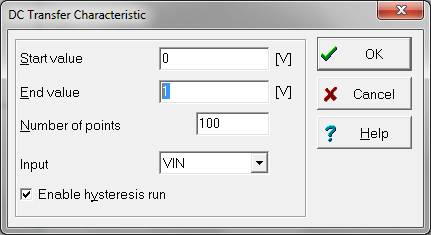
Change the Start Value to -2.5 and the End Value to 2.5. This allows you to choose the start and end voltages you would like to see with the input. Then click OK. The following graph should appear.
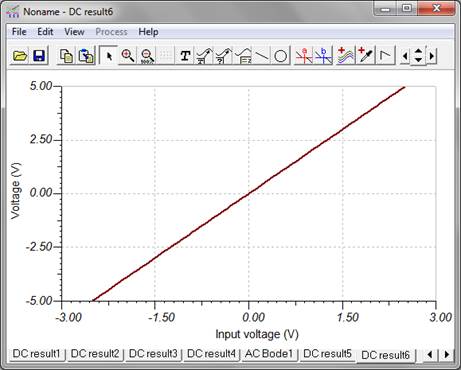
Notice on the bottom of the graph the different tabs. You can click on the different tabs and view previous results you ran. You can see from the graph the output voltage linearly changes with the input voltage. Change the start and end voltages to see if you find any voltages with a different response other than linear.
III. Run an AC Analysis
Click the Analysis tab again and scroll down and highlight AC Analysis then choose AC Transfer Characteristic. Allow the Start Frequency to be 1M Hz and the End Frequency to be 1G Hz.
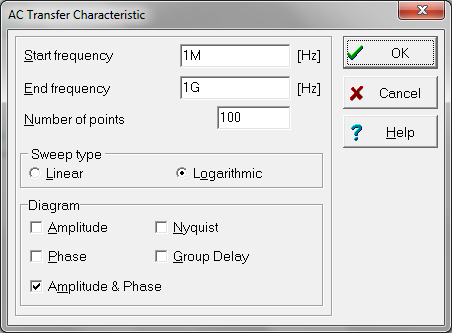
This will show the frequency response of the circuit. Click OK. The following graph should appear.
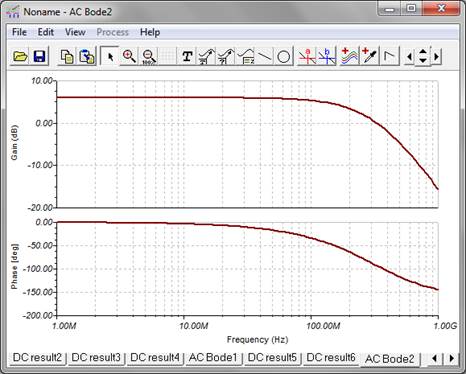
Notice the Gain is about 6 dB which is about equal to a gain of 2. This holds true until around 50M Hz.
Conclusion
TINA-TI has a variety of features, more than what is covered here. Its simple and easy to use interface allows customers to build and run complex tests and continue engineering their circuit without the hassle of learning a difficult software.
References
"SPICE-Based Analog Simulation Program." Texas Instruments. Web. 12 Mar 2014. <http://www.ti.com/tool/tina-ti>.
" OPA691 (ACTIVE) Wideband Current Feedback Operational Amplifier with Disable." Texas Instruments. Web. 12 Mar 2014. <http://www.ti.com/product/opa691>.